
50 Microsoft Word Keyboard Shortcuts to Boost Your Productivity
If you’re like most professionals, students, or writers, Microsoft Word is probably your go-to word processor. While it’s packed with powerful features, many users only scratch the surface of what it can do. Want to save time, streamline your workflow, and work smarter? The key lies in keyboard shortcuts.
In this post, we’ll explore 50 must-know Microsoft Word keyboard shortcuts that can supercharge your productivity. Whether you’re formatting documents, editing text, or navigating through long reports, these shortcuts can significantly reduce your reliance on the mouse and make you a more efficient Word user.
📁 File Management Shortcuts
- Ctrl + N – Create a new document
- Ctrl + O – Open an existing document
- Ctrl + S – Save the current document
- F12 – Save As a new file
- Ctrl + P – Print the document
- Ctrl + W or Ctrl + F4 – Close the current document
These shortcuts help you perform essential file operations quickly, saving precious time.

✂️ Editing and Clipboard Shortcuts
- Ctrl + C – Copy selected text
- Ctrl + X – Cut selected text
- Ctrl + V – Paste text from the clipboard
- Ctrl + Z – Undo the last action
- Ctrl + Y – Redo the last action
- Ctrl + A – Select all content in the document
- Del – Delete selected text
- Ctrl + Backspace – Delete the word to the left
- Ctrl + Delete – Delete the word to the right
These basic yet powerful shortcuts are essential for efficient text manipulation.
🔤 Formatting Text Shortcuts
- Ctrl + B – Bold
- Ctrl + I – Italicize
- Ctrl + U – Underline
- Ctrl + Shift + > – Increase font size
- Ctrl + Shift + < – Decrease font size
- Ctrl + D – Open the Font dialog box
- Ctrl + = – Apply subscript
- Ctrl + Shift + = – Apply superscript
- Ctrl + Spacebar – Remove formatting
- Ctrl + Shift + A – Convert selected text to uppercase
Text formatting shortcuts help you style your content effortlessly, making documents look professional in less time.
📋 Paragraph and Alignment Shortcuts
- Ctrl + E – Center align
- Ctrl + L – Left align
- Ctrl + R – Right align
- Ctrl + J – Justify text
- Ctrl + M – Increase paragraph indent
- Ctrl + Shift + M – Decrease indent
- Ctrl + T – Create a hanging indent
- Ctrl + Q – Remove paragraph formatting
- Ctrl + 1 – Set single line spacing
- Ctrl + 2 – Set double line spacing
- Ctrl + 5 – Set 1.5 line spacing
Formatting your paragraphs is critical for readability. These shortcuts help you structure your content with minimal effort.
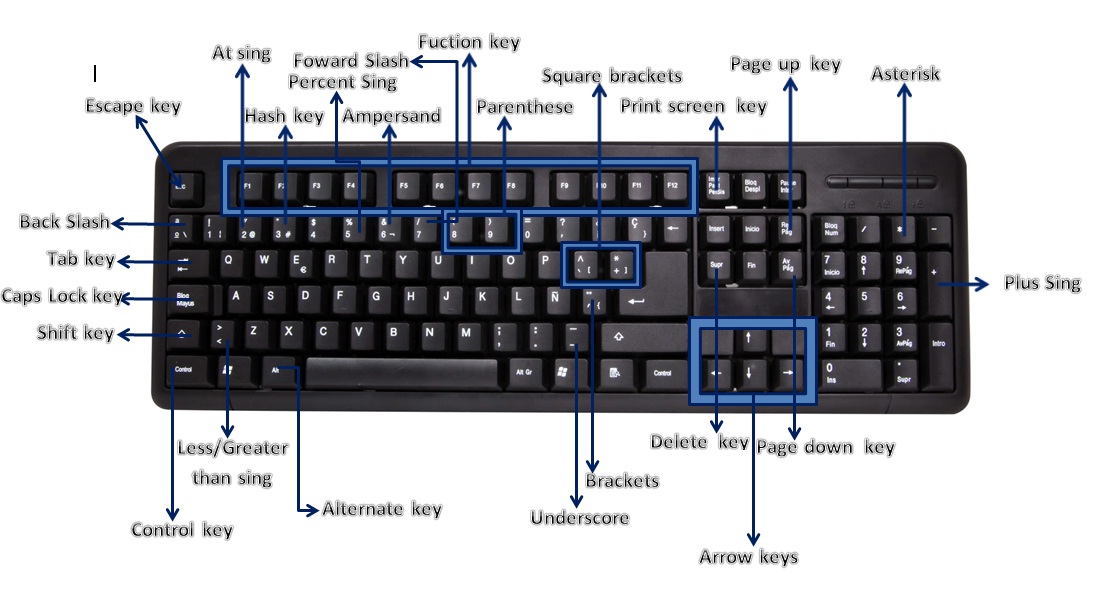
🔍 Navigation and Search Shortcuts
- Ctrl + F – Open the Find feature
- Ctrl + H – Open Find and Replace
- Ctrl + Home – Jump to the beginning of the document
- Ctrl + End – Jump to the end of the document
- Ctrl + → / ← – Move cursor one word right/left
- Ctrl + ↑ / ↓ – Move one paragraph up/down
- Shift + F5 – Return to the last edit point
Navigating through long documents is a breeze when you master these keyboard shortcuts.
📅 Inserting and Special Tools Shortcuts
- Ctrl + K – Insert or edit a hyperlink
- Alt + Shift + D – Insert current date
- Alt + Shift + T – Insert current time
- Ctrl + Enter – Insert a page break
- Ctrl + Shift + L – Apply bullet style
- F7 – Spell check
- Shift + F7 – Open thesaurus
These shortcuts allow you to insert elements and perform quick language checks without ever leaving your keyboard.
✅ Why Use Microsoft Word Keyboard Shortcuts?
Keyboard shortcuts are more than just a convenience—they’re a productivity powerhouse. Here’s why you should start using them today:
- Speed: Performing actions like copy/paste or formatting can be done in seconds.
- Focus: Reduces the need to switch from keyboard to mouse, improving your workflow.
- Ergonomics: Minimizes hand movements, which can reduce strain and fatigue.
- Professional Output: Quickly format documents to look clean and polished.
📈 SEO Tip: How Keyboard Shortcuts Help Content Writers
If you’re a blogger, content writer, or digital marketer, mastering Microsoft Word shortcuts can help you:
- Write faster blog drafts
- Edit client documents with ease
- Format ebooks and whitepapers professionally
- Minimize downtime during research and content planning
Using shortcuts isn’t just about saving time—it’s about increasing your output quality and quantity.
🔚 Conclusion
Microsoft Word is an incredibly versatile tool, and knowing the right keyboard shortcuts can make a big difference in how efficiently you use it. From formatting to navigation and editing, the 50 keyboard shortcuts listed above are essential for anyone who works regularly in Word.
Whether you’re a student writing essays, a professional drafting reports, or a content creator preparing blog posts, learning these shortcuts will pay off every time you open a document.
Take a few minutes each day to practice them, and soon they’ll become second nature. You’ll wonder how you ever worked without them.
💡 Bonus Tip
Want to go a step further? Customize your keyboard shortcuts in Word by going to:
File > Options > Customize Ribbon > Customize Keyboard Shortcuts
You can assign keys to your most-used commands and make Word truly work for you.


