50 Microsoft PowerPoint Keyboard Shortcuts to Boost Your Productivity
Microsoft PowerPoint remains one of the most powerful tools for creating presentations, whether for business meetings, educational purposes, or webinars. But did you know that PowerPoint keyboard shortcuts can save you hours of clicking, dragging, and formatting?
In this comprehensive guide, we’ll walk you through 50 essential PowerPoint keyboard shortcuts that will boost your efficiency, enhance your workflow, and help you create stunning presentations with ease.
Table of Contents:
- Why Use PowerPoint Keyboard Shortcuts?
- General PowerPoint Shortcuts
- Navigation and View Shortcuts
- Editing and Formatting Text Shortcuts
- Object and Slide Shortcuts
- Slideshow Control Shortcuts
- Design & Layout Shortcuts
- Slide Creation & Management Shortcuts
- Mac-Specific PowerPoint Shortcuts
- How to Remember PowerPoint Shortcuts Easily
- SEO Tip: Why Keyboard Shortcuts Improve Productivity
- Final Thoughts
Whether you’re a Windows user or on macOS, these shortcuts are designed to help you work faster and smarter inside PowerPoint.

📌 Why Use PowerPoint Keyboard Shortcuts?
- ⏱️ Save time: No need to navigate through multiple tabs and menus.
- 🎨 Streamline design: Make formatting and object alignment effortless.
- 🎥 Master presentations: Control slides smoothly during live presentations.
- 🔁 Enhance workflow: Speed up repetitive tasks like copying, aligning, and transitioning.
Let’s dive into the top 50 PowerPoint shortcuts every user should know.
🖥️ General PowerPoint Shortcuts
These are universal commands that help you manage files and navigate quickly.
| Shortcut | Function |
|---|---|
| Ctrl + N | Create a new presentation |
| Ctrl + O | Open an existing presentation |
| Ctrl + S | Save the current presentation |
| F12 / Ctrl + Shift + S | Save As |
| Ctrl + P | Print the presentation |
| Ctrl + Q | Close PowerPoint |
| Ctrl + Z | Undo last action |
| Ctrl + Y | Redo last undone action |
| Ctrl + C | Copy selected object or text |
| Ctrl + V | Paste copied content |
🧭 Navigation and View Shortcuts
These shortcuts help you navigate between slides, panes, and views.
| Shortcut | Function |
|---|---|
| F5 | Start slideshow from the beginning |
| Shift + F5 | Start slideshow from the current slide |
| Esc | Exit slideshow |
| Ctrl + W / Ctrl + F4 | Close active presentation |
| Ctrl + Tab | Switch between open presentations |
| Alt + F10 | Maximize the Ribbon |
| Ctrl + F1 | Show/hide the Ribbon |
| Alt + V, D | Switch to Slide Sorter view |
| Alt + V, N | Switch to Notes Page view |
✏️ Editing and Formatting Text Shortcuts
Speed up how you edit and format text within slides.
| Shortcut | Function |
|---|---|
| Ctrl + B | Bold text |
| Ctrl + I | Italicize text |
| Ctrl + U | Underline text |
| Ctrl + T | Open Font dialog box |
| Ctrl + E | Center align |
| Ctrl + L | Left align |
| Ctrl + R | Right align |
| Ctrl + J | Justify text |
| Ctrl + K | Insert hyperlink |
| Ctrl + Shift + > / < | Increase/decrease font size |

🖼️ Object and Slide Shortcuts
Make it easier to manipulate images, shapes, text boxes, and entire slides.
| Shortcut | Function |
|---|---|
| Ctrl + D | Duplicate selected object or slide |
| Delete | Remove selected object or slide |
| Ctrl + G | Group selected objects |
| Ctrl + Shift + G | Ungroup selected objects |
| Ctrl + Shift + C | Copy object formatting |
| Ctrl + Shift + V | Paste object formatting |
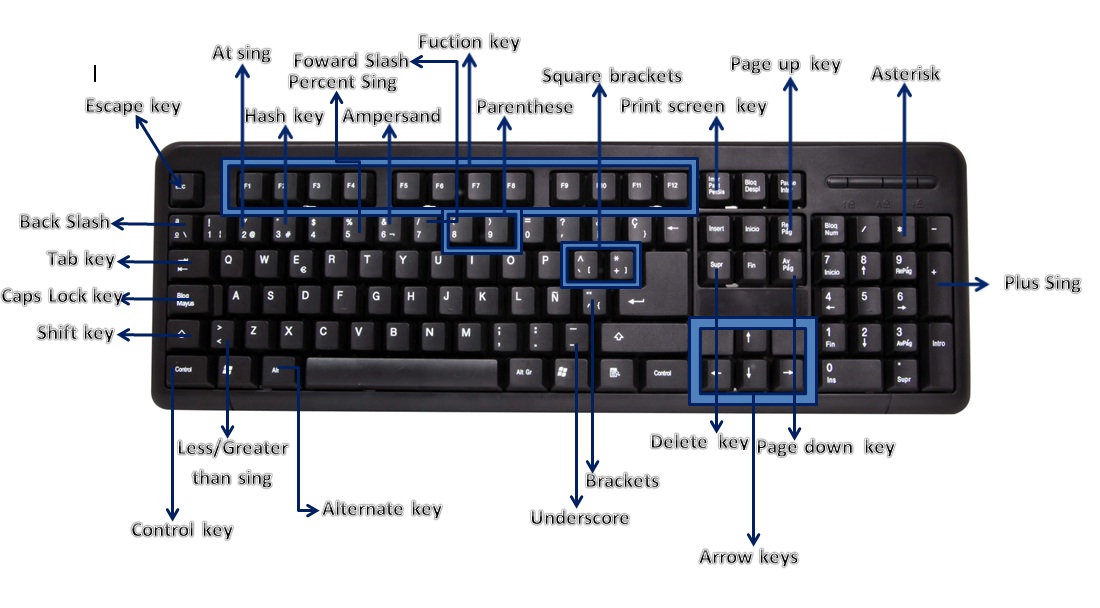
| Arrow Keys | Nudge object position (1px) |
| Shift + Arrow Keys | Nudge object position (10px) |
| Alt + Shift + Left/Right Arrow | Promote/demote bullet level |
| Ctrl + Shift + Up/Down Arrow | Move slide up/down in sequence |
🎞️ Slideshow Control Shortcuts
Be in full control during a live presentation.
| Shortcut | Function |
|---|---|
| N / Right Arrow / Space | Next slide |
| P / Left Arrow / Backspace | Previous slide |
| Number + Enter | Jump to specific slide |
| B | Black screen |
| W | White screen |
| E | Erase ink annotations |
| Ctrl + P | Pen tool |
| Ctrl + A | Arrow pointer |
| Ctrl + H | Hide cursor and navigation |
| Ctrl + M | Mute/unmute media during slideshow |
🧱 Design & Layout Shortcuts
Simplify the design and alignment of elements on your slide.
| Shortcut | Function |
|---|---|
| Alt + D + P | Open Design Ideas |
| Alt + G + H | Choose a theme |
| Alt + J + A + L | Align left |
| Alt + J + A + C | Align center |
| Alt + J + A + R | Align right |
| Alt + J + A + T | Align top |
| Alt + J + A + M | Align middle |
| Alt + J + A + B | Align bottom |
| Alt + J + A + H | Distribute horizontally |
| Alt + J + A + V | Distribute vertically |
🆕 Slide Creation & Management Shortcuts
Use these shortcuts to add, rearrange, or duplicate slides quickly.
| Shortcut | Function |
|---|---|
| Ctrl + M | Insert a new slide |
| Ctrl + Shift + D | Duplicate selected slide |
| Ctrl + Up/Down Arrow | Move between slides |
| Ctrl + Enter | Jump to title placeholder |
| Ctrl + Shift + Up/Down Arrow | Reorder slides |
| Alt + Shift + Left/Right Arrow | Change bullet level |
| Ctrl + Shift + Drag | Duplicate object while dragging |
💻 Mac-Specific PowerPoint Shortcuts
If you’re a Mac user, here are PowerPoint shortcuts tailored for macOS.
| Shortcut | Function |
|---|---|
| Command + N | New presentation |
| Command + S | Save presentation |
| Command + P | Print presentation |
| Command + Shift + D | Duplicate slide |
| Command + Option + G | Group objects |
| Command + Option + Shift + G | Ungroup objects |
| Command + Option + T | Insert text box |
| Command + = | Superscript |
| Command + Shift + = | Subscript |
🧠 How to Remember PowerPoint Shortcuts Easily
Here are some tips to help you remember and master PowerPoint keyboard shortcuts:
Start small: Focus on learning 5–10 shortcuts at a time.
Use cheat sheets: Print a shortcut cheat sheet for quick access.
Practice frequently: Repetition is key to memory retention.
Group by category: Learn editing shortcuts one week, slide shortcuts the next.
Use sticky notes: Place reminders on your desk for commonly used shortcuts.

🔍 SEO Tip: Why Keyboard Shortcuts Improve Productivity
Using shortcuts in PowerPoint doesn’t just make you faster—it makes you more professional. Here’s why:
Presenters who use keyboard shortcuts tend to have smoother workflows.
Efficient slide design improves presentation quality.
Faster creation leads to more time for refining content.
Speed and accuracy are essential for tight deadlines and live presentations.
📈 Boost Your Efficiency: Real-World Shortcut Use Cases
Here are a few practical scenarios where PowerPoint shortcuts save the day:
📊 Corporate Presentation:
You’re preparing a quarterly sales report. With Ctrl + M, you quickly add slides for each department. You use Ctrl + Shift + C/V to apply consistent formatting across charts, and F5 to review your deck from the top.
🧑🏫 Teaching a Class:
While delivering a lecture, you use B to blackout the screen during discussions, Ctrl + P to annotate, and Number + Enter to jump directly to key slides.
💡 Design Project:
Designers often use Alt + J + A + M to align elements centrally and Ctrl + D to replicate buttons or graphics for consistency.
📄 Downloadable Cheat Sheet
🎁 Want a downloadable PDF of these 50 PowerPoint shortcuts?
Let me know, and I’ll generate a printable version you can keep at your desk.
🏁 Final Thoughts
Mastering Microsoft PowerPoint keyboard shortcuts can dramatically improve your workflow. Whether you’re building presentations, pitching to clients, or lecturing students, using shortcuts means more time creating value and less time navigating menus.
By learning even a handful of these 50 shortcuts, you’ll become more efficient, confident, and productive in your PowerPoint tasks.