📂 SHAREit for Windows: The Ultimate Guide to Fast, Wireless File Sharing
In today’s hyper-connected world, fast and secure file sharing is essential for both productivity and entertainment. Whether you’re transferring documents at work, syncing music between devices, or moving videos from your phone to your PC, traditional methods like USB drives and Bluetooth can be slow and clunky. This is where SHAREit for Windows comes in—a powerful, cross-platform solution that makes wireless file transfer faster and easier than ever.
In this guide, we’ll walk you through:
- What SHAREit is and how it works on Windows
- Key features and benefits
- How to install and use SHAREit on your PC
- Tips for secure and optimized transfers
- Pros and cons to consider in 2026
Let’s dive in.
🚀 What is SHAREit?
SHAREit is a free file-sharing application developed by Smart Media4U Technology, originally launched by Lenovo. It supports cross-platform sharing, allowing users to send files between Windows, Android, iOS, and macOS without using mobile data or USB cables.
🔧 How It Works
SHAREit uses a direct Wi-Fi hotspot connection between devices (also known as Wi-Fi Direct), enabling fast and secure file transfers without relying on internet access.
💻 Why Use SHAREit on Windows?
While mobile sharing apps are plentiful, SHAREit for Windows provides unique advantages:
- Transfer files between PC and mobile devices wirelessly
- Share documents, apps, videos, music, and even whole folders
- Speeds up to 20 MB/s or more—200x faster than Bluetooth
- Compatible with all major operating systems
- Completely free to download and use
Whether you’re a student, office worker, or content creator, SHAREit saves time and boosts efficiency.
🏆 Key Features of SHAREit for Windows
1. Lightning-Fast File Transfers
Thanks to Wi-Fi Direct, SHAREit allows users to send GBs of data in minutes without internet or cables. You can move HD movies, software files, or game folders at blazing speeds.
2. Cross-Platform Support
Easily share files between:
- Windows PC ↔ Android phones/tablets
- Windows PC ↔ iPhones/iPads
- Windows PC ↔ Other PCs
3. No Internet Required
SHAREit creates a direct wireless connection between devices, so it works offline—ideal for secure, offline environments like schools or airports.
4. Supports All File Types
From PDFs and Word documents to MP3s, MP4s, EXEs, APKs, and ZIPs—SHAREit handles them all.
5. Built-in Media Player
SHAREit for Windows includes a lightweight media player to preview or play your received content without needing another app.
6. Group Sharing
Send files to multiple devices at once, saving even more time when distributing materials in classrooms or meetings.
7. Clipboard & Remote View
Access your phone’s clipboard or browse files on another device connected to your SHAREit PC app.
🖥️ How to Install SHAREit on Windows
Step-by-Step Installation Guide:
Visit the Official Website
- Go to https://www.ushareit.com/ to download the latest version of SHAREit for Windows.
Download the Installer
- Click on the “Download for Windows” button. This will save the .exe installer to your Downloads folder.
Run the Installer
- Double-click the file and follow the on-screen instructions. Accept the license agreement and choose your installation path.
Launch the Application
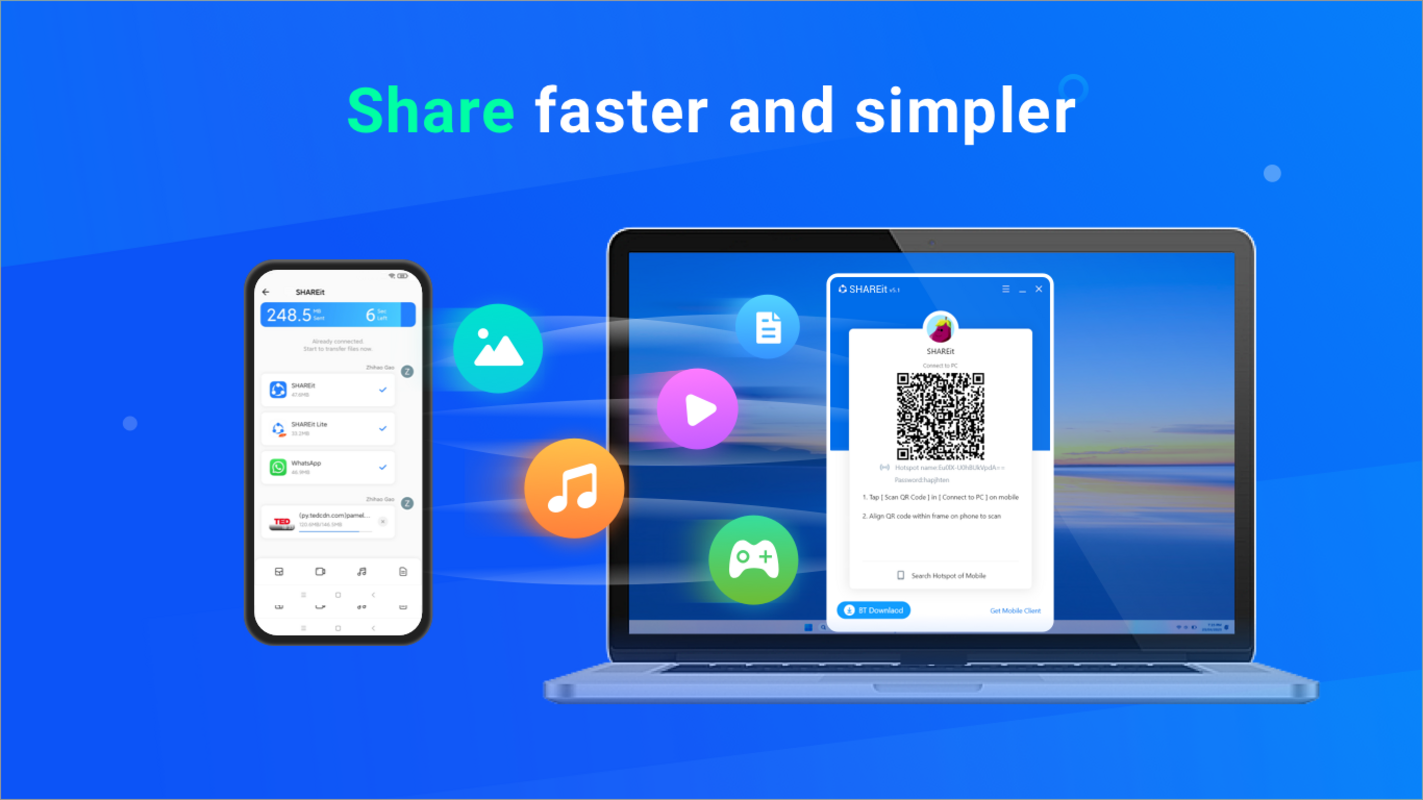
- Once installed, open SHAREit. You’ll see a clean dashboard prompting you to connect a device.
- Connect to Mobile or Other PC
- On your Android or iOS device, open the SHAREit app and tap “Connect to PC”.
- Scan the QR code shown on your PC or connect via hotspot or local Wi-Fi.
📱 How to Transfer Files Between Windows and Android/iOS
From Windows to Mobile:
- Open SHAREit on both devices
- Connect via the QR code or auto-discovery
- On your PC, click “Send”
- Choose files/folders to transfer
- Select the mobile device and hit “Send.”
From Mobile to Windows:
- Open SHAREit on your phone
- Connect to PC
- Tap “Send” on mobile and pick files
- Accept the transfer on your PC
🔐 Security Tips for Using SHAREit Safely in 2026
While SHAREit offers incredible speed, it’s important to use it responsibly:
✅ Download only from the official website
Avoid third-party sources that may bundle malware or adware.
🔒 Use a secure, password-protected Wi-Fi network
Especially when transferring sensitive or personal files.
🧹 Clean up received files regularly
SHAREit stores received content in its folder, which can fill up your drive.
🚫 Avoid auto-receiving files from unknown users
Always confirm sender identity before accepting files.
🧾 SHAREit for Windows: Pros and Cons
✅ Pros:
- Extremely fast file transfers
- Free and easy to use
- Works across all major devices
- No file size limitations
- Does not require internet
❌ Cons:
- Includes ads and pop-ups in some versions
- Occasional bugs in older versions
- Requires both devices to have SHAREit installed
- Potential security risks if not used properly
💡 Tip: Keep your SHAREit version updated to reduce bugs and improve security.
🔄 Best Alternatives to SHAREit (in case you want options)
- Though SHAREit remains a top choice, here are a few alternatives for file sharing:
- Snapdrop – browser-based, open-source, no installation needed
- Send Anywhere – secure, real-time file transfers with 6-digit keys
- AirDroid – more advanced features like remote control and screen mirroring
- Nearby Share for Windows – Google’s official file transfer tool (for Android/Windows)
🏁 Final Thoughts
SHAREit for Windows is a must-have tool for anyone looking to share files quickly, wirelessly, and for free. With its intuitive interface, lightning-fast speed, and support for nearly all file formats, SHAREit remains a top performer in 2026 for both personal and professional use.
Whether you’re transferring photos from your phone to your PC or collaborating across multiple devices at work, SHAREit makes the process seamless and efficient.
✅ Download SHAREit today and take control of your digital transfers, no cables, no clutter, just speed.